
Your My Account tour
Find bookings, license payments, credit, referrals, saved cards and your private voice-agent access code.
Steps
- 1
Open My Account
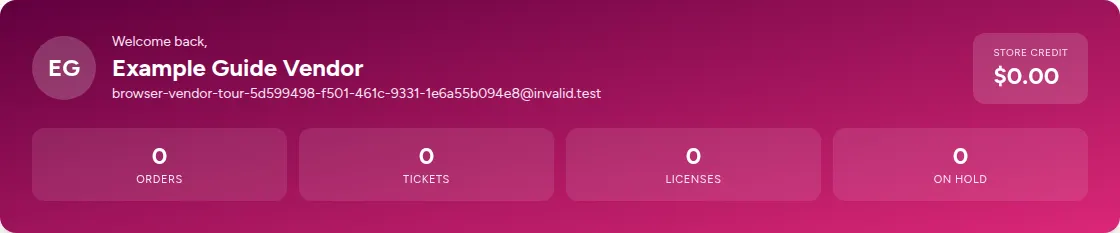
Sign in and choose My Account in the header. The welcome panel summarizes orders, tickets, licenses, on-hold licenses and store credit. Take the tour replays the short walkthrough.
Open My Account → - 2
Start with Overview
Overview contains shortcuts and recent activity. In VOICE AGENT ACCESS CODE, Copy copies your private support code; Generate new code replaces it. Read it only to our support agent when you want account-aware help.
- 3
Find event activity
Booth Licenses contains subscription status, billing history, Cancel and payment recovery. Tickets contains attendee/booth details and check-in status. Orders expands event order numbers into line items. These are not your marketplace customer orders.
Open event Orders → - 4
Use the remaining tabs
Promo Orders shows promotion purchases and interests. Store Credit shows your balance and ledger. Refer & Earn is the referrals tab: copy your referral link and review rewards. Payment Methods contains your saved cards. Online-only accounts hide event-only tabs where appropriate.
Open Refer & Earn → - 5
Resolve a payment on hold
A yellow license-payment banner stays visible when a charge fails. Add a card if you do not have one, or use the displayed payment action to retry. Recheck status after payment; a pending or failed attempt is not confirmation.
Open Booth Licenses → - 6
Enter online selling tools
Set up my online store takes eligible vendors to the online Dashboard, where setup services and Continue setup are available. Marketplace Products and Orders are separate from the tabs on My Account.
Open online Dashboard →
Good to know
- Payment history is expandable; a current plan rate is not proof that the same amount was charged.
- Do not publish screenshots containing your private voice-agent code, card details or login codes.
Questions
Why do I not see all tabs?
Available account tools depend on your sales scope and permissions. Online-only vendors do not need event-only tools; ask support if your approval is wrong.
Does the tour make bookings or payments?
No. The tour highlights controls and explains them. You must deliberately use the actual booking and payment controls yourself.
Related guides
Booth Licenses, billing and auto-release
Reserve a regular booth, understand renewal and failed-payment recovery, and know when opt-in auto-release can affect an unbooked date.
Store credit and payment methods
Read your credit ledger, apply eligible credit at event checkout and keep saved cards ready for recurring payments.
Get help: tickets, text and voice
Reach support even before approval, open and reply to a ticket, or use the text/voice assistant with your chosen audio devices.